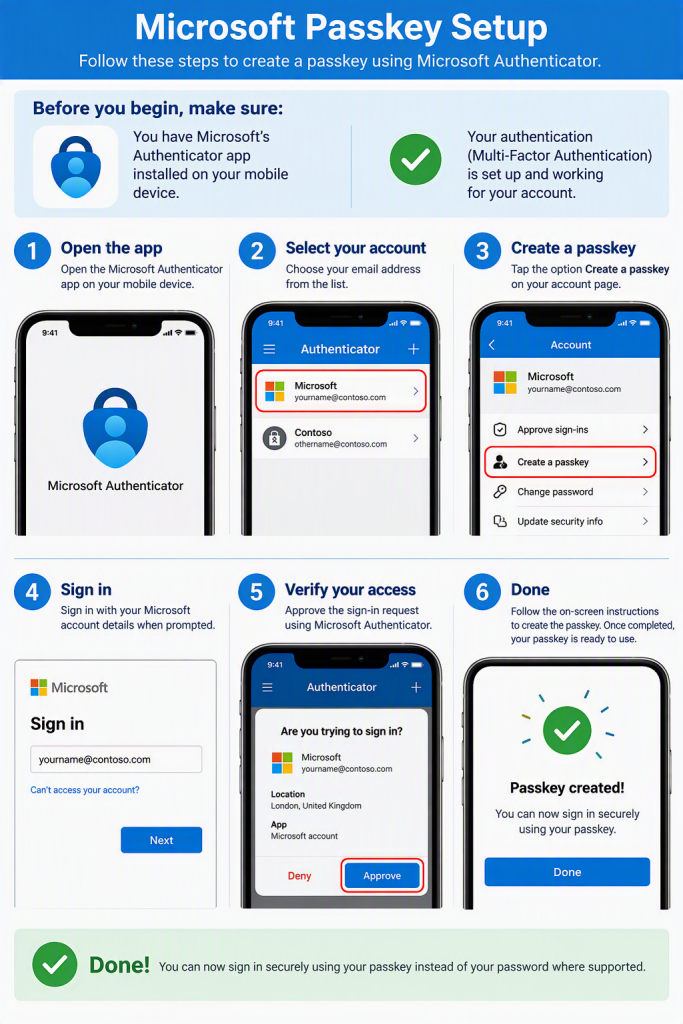
Microsoft Passkey Setup

Before you begin, make sure:

  • Microsoft Authenticator is installed on your mobile device.
  • Multi-Factor Authentication (MFA) is already set up and working for your account.
  • You have Screen Lock on your Phone

Create a Passkey

  1. Open the Microsoft Authenticator app.
  2. Select your email address/account from the list.
  3. Tap Create a Passkey.

Complete the Setup

  1. Sign in with your Microsoft account credentials when prompted.
  2. Verify your identity using Microsoft Authenticator.
  3. Follow the on-screen instructions to create the passkey.
  4. Once completed, your passkey is ready to use.

βœ… Done! You can now sign in securely using your passkey instead of your password where supported.

Using Your Passkey to Sign In

  1. Open Outlook, Teams, OneDrive, or another Microsoft 365 application.
  2. Enter your email address and select Next.
  3. Select Sign-in options and choose Use a passkey.
  4. Scan the QR code displayed on the screen using your mobile device.
  5. Approve the sign-in using Face ID, fingerprint, or your device PIN.
  6. Access is granted and you are signed in securely without a password.

πŸ’‘ Tip: Keep Microsoft Authenticator installed on your mobile device, as it may be required to complete passkey sign-ins on new computers or browsers.

Enter Email β†’ Use Passkey β†’ Scan QR Code β†’ Verify on Phone β†’ Signed In

Passkey setup